


The Ongoing Orders section provides a consolidated view of orders that are currently in progress. Users can filter, search, sort, and export order information.
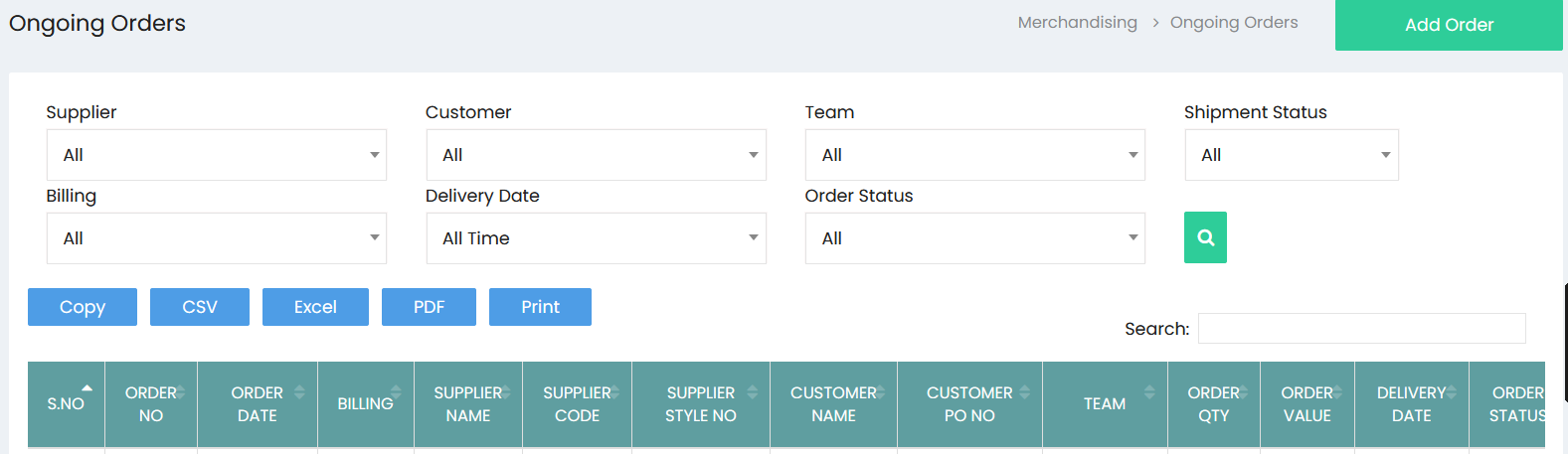
Order Filters
The available filters allow users to narrow down the ongoing order list:
- Supplier – Filter orders by supplier.
- Customer – Filter orders by customer.
- Team – Filter orders by team.
- Shipment Status – Filter orders based on shipment status.
- Billing – Filter orders based on billing information.
- Delivery Date – Filter orders based on the delivery date or available time period.
- Order Status – Filter orders based on their current status.
- Search – Apply the selected filters to display the matching orders.
Select Add Order to create a new order.
Ongoing Orders List
The ongoing orders table displays the following details:
- S.No – Displays the serial number.
- Order No – Displays the order number.
- Order Date – Displays the order date.
- Billing – Displays the billing information.
- Supplier Name – Displays the supplier name.
- Supplier Code – Displays the supplier code.
- Supplier Style No – Displays the supplier style number.
- Customer Name – Displays the customer name.
- Customer PO No – Displays the customer purchase order number.
- Team – Displays the team associated with the order.
- Order Qty – Displays the total quantity ordered.
- Order Value – Displays the total value of the order.
- Delivery Date – Displays the delivery date.
- Order Status – Displays the current status of the order.
Search and Export
The ongoing order list provides the following options:
- Search – Search for a specific ongoing order or record.
- Copy – Copy the displayed order data.
- CSV – Export the order data in CSV format.
- Excel – Export the order data in Excel format.
- PDF – Export the order data in PDF format.
- Print – Print the ongoing order list.