


Overview
The Shipment Reports section in Skynyx BMS provides a detailed view of shipment quantities for ongoing orders. It helps users monitor ordered quantities, total quantities, and remaining quantities at the product level.
Ongoing Order Shipments
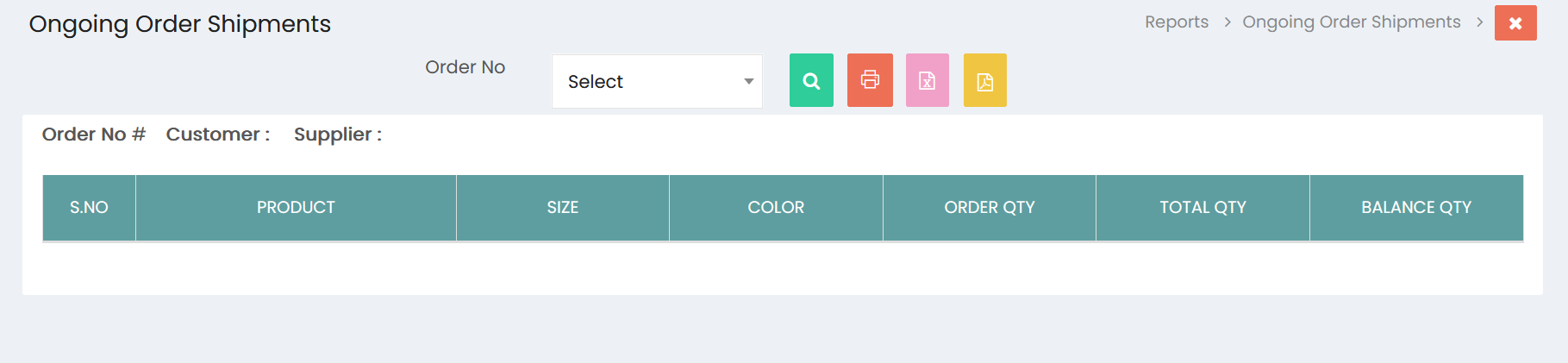
The Ongoing Order Shipments report displays shipment information for an ongoing order.
Order No
Select the required Order No from the available list to view shipment details for a specific order.
Search
Click the Search icon to display the shipment information for the selected order.
Order Information
After selecting an order, the report displays the associated order information, including:
- Order No – Displays the selected order number.
- Customer – Displays the customer associated with the order.
- Supplier – Displays the supplier associated with the order.
Shipment Details
The shipment table displays the following information:
- S.No – Serial number of the shipment item.
- Product – Product associated with the order.
- Size – Size of the product.
- Color – Color of the product.
- Order Qty – Quantity originally ordered for the product.
- Total Qty – Total quantity associated with the shipment.
- Balance Qty – Remaining quantity to be shipped.
Report Actions
The Shipment Reports page provides the following options:
- Print – Prints the displayed shipment report.
- Excel – Exports the shipment information in Excel format.
- PDF – Exports the shipment information in PDF format.
Shipment Report Management
The Shipment Reports section enables users to:
- Select and review ongoing orders.
- View customer and supplier information.
- Review product-wise shipment details.
- Monitor ordered quantities.
- Track total quantities.
- Identify remaining shipment quantities.
- Print shipment reports.
- Export shipment information in Excel and PDF formats.