


Overview
The User Roles & Permissions section in Skynyx BMS is used to manage system users, assign profiles and roles, and control access to different functions within the application.
The section provides a centralized view of active and inactive users and allows authorized users to invite new users to the system.
Users & Roles
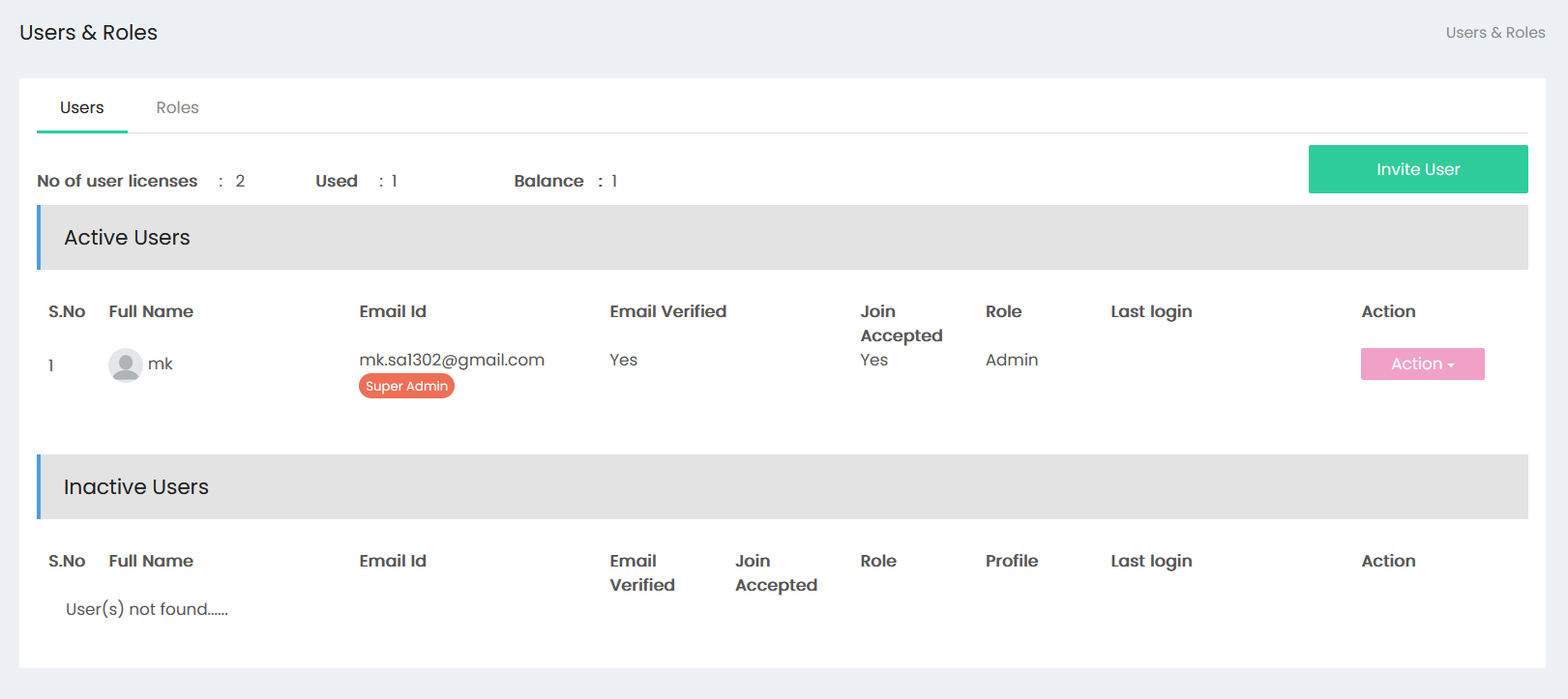
The Users tab displays the list of users associated with the system.
License Information
The top section displays user license information:
- No of User Licenses – Displays the total number of user licenses available.
- Used – Displays the number of licenses currently assigned.
- Balance – Displays the number of licenses remaining for use.
Active Users
The Active Users section displays users who are currently active in the system.
The following information is displayed:
- S.No – Serial number of the user.
- Full Name – Name of the user.
- Email Id – Email address associated with the user.
- Email Verified – Indicates whether the user's email has been verified.
- Join Accepted – Indicates whether the user has accepted the invitation.
- Role – Displays the role assigned to the user.
- Last Login – Displays the user's latest login information.
- Action – Provides available actions for managing the user.
Users with administrative privileges may be identified with an appropriate role or access indicator.
Inactive Users
The Inactive Users section displays users who are currently inactive.
The section provides information such as:
- S.No
- Full Name
- Email Id
- Email Verified
- Join Accepted
- Role
- Profile
- Last Login
- Action
Invite User
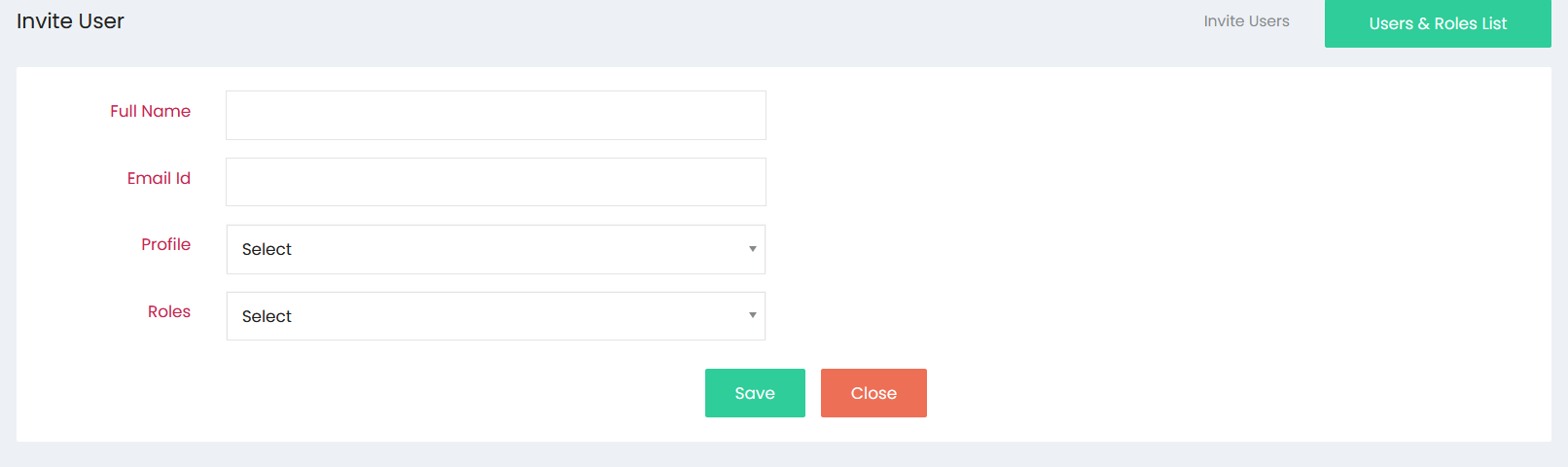
The Invite User function allows an authorized user to add a new user to Skynyx BMS.
The invitation form contains the following fields:
Full Name
Enter the full name of the user being invited.
Email Id
Enter the user's email address. The email address is used for the user invitation and account-related communication.
Profile
Select the appropriate profile for the user from the available options.
Roles
Select the role to be assigned to the user. The selected role determines the user's permitted access within the system.
Save
Click Save to submit the user invitation and create the user record.
Close
Click Close to exit the invitation form without saving the entered information.
Users & Roles List
The Users & Roles List option provides access back to the Users & Roles listing page.
Roles
The Roles tab is used to manage and define user roles within Skynyx BMS. Roles are used to organize user access and determine the functions available to different users based on their responsibilities.
Permissions
Permissions determine the level of access available to a user based on the assigned role and profile. By assigning appropriate roles and profiles, administrators can control access to system functions and ensure that users have access relevant to their responsibilities.
User Management
The User Roles & Permissions section enables administrators to:
- View active and inactive users.
- Monitor user license usage and availability.
- Invite new users.
- Assign profiles to users.
- Assign roles to users.
- Monitor email verification status.
- Monitor invitation acceptance status.
- Review user login information.
- Manage user access through roles and permissions.