


The Creating Purchase Orders feature allows users to create and record purchase orders by entering order details, customer information, delivery details, payment terms, and supplier information.
General Info
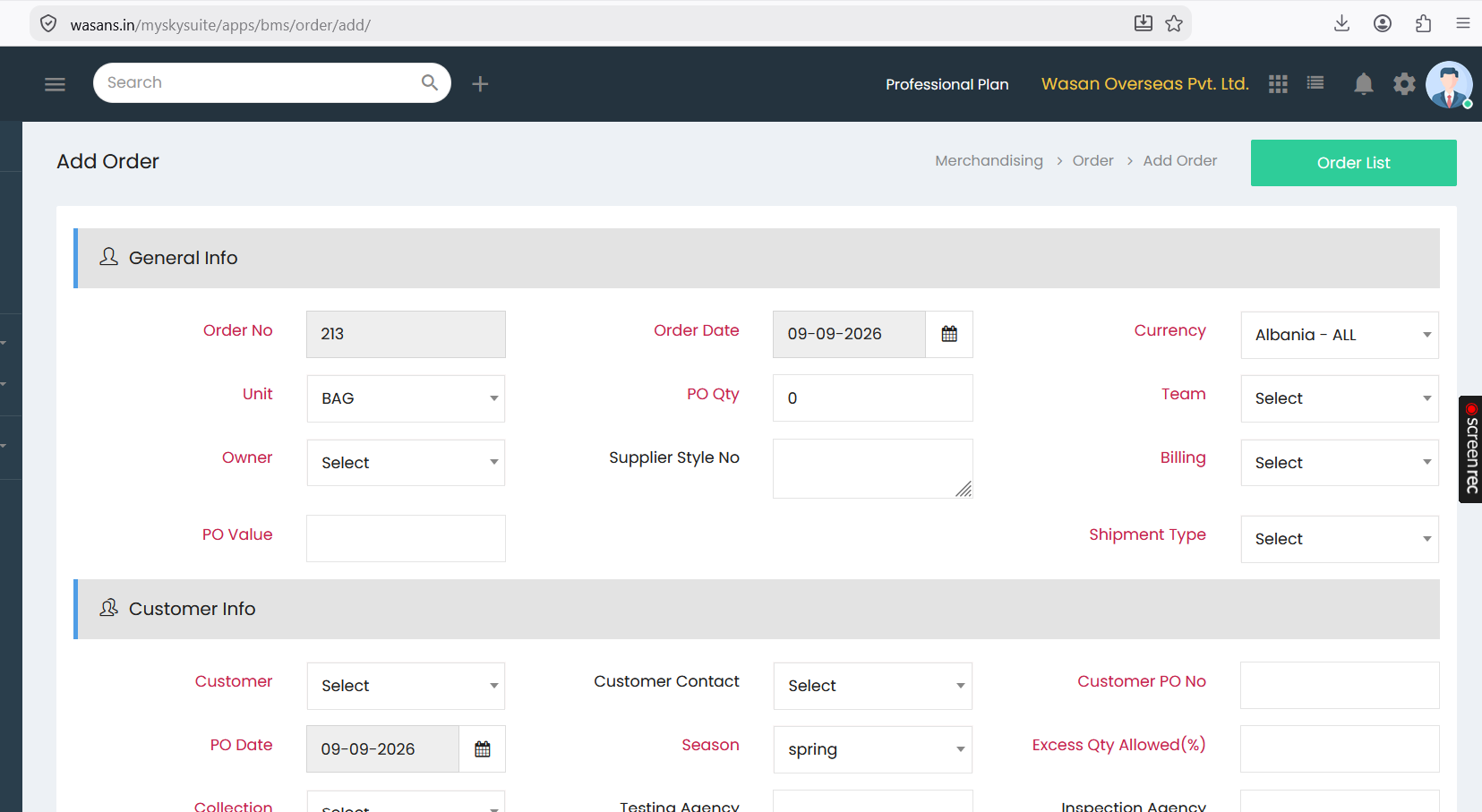
Enter the basic purchase order details in the General Info section:
- Order No – Displays the purchase order number.
- Order Date – Select the date on which the order is created.
- Currency – Select the currency applicable to the order.
- Unit – Select the required unit of measurement.
- PO Qty – Enter the purchase order quantity.
- Team – Select the responsible team.
- Owner – Select the person responsible for the order.
- Supplier Style No – Enter the supplier's style/reference number.
- Billing – Select the applicable billing information.
- PO Value – Enter the total purchase order value.
- Shipment Type – Select the shipment type.
Customer Info
Enter the customer-related details in the Customer Info section:
- Customer – Select the customer for the purchase order.
- Customer Contact – Select the relevant customer contact.
- Customer PO No – Enter the customer's purchase order number.
- PO Date – Select the customer PO date.
- Season – Select the applicable season.
- Excess Qty Allowed (%) – Enter the permitted excess quantity percentage.
- Collection – Select the applicable collection.
- Testing Agency – Enter or select the testing agency.
- Inspection Agency – Enter or select the inspection agency.
Delivery Info
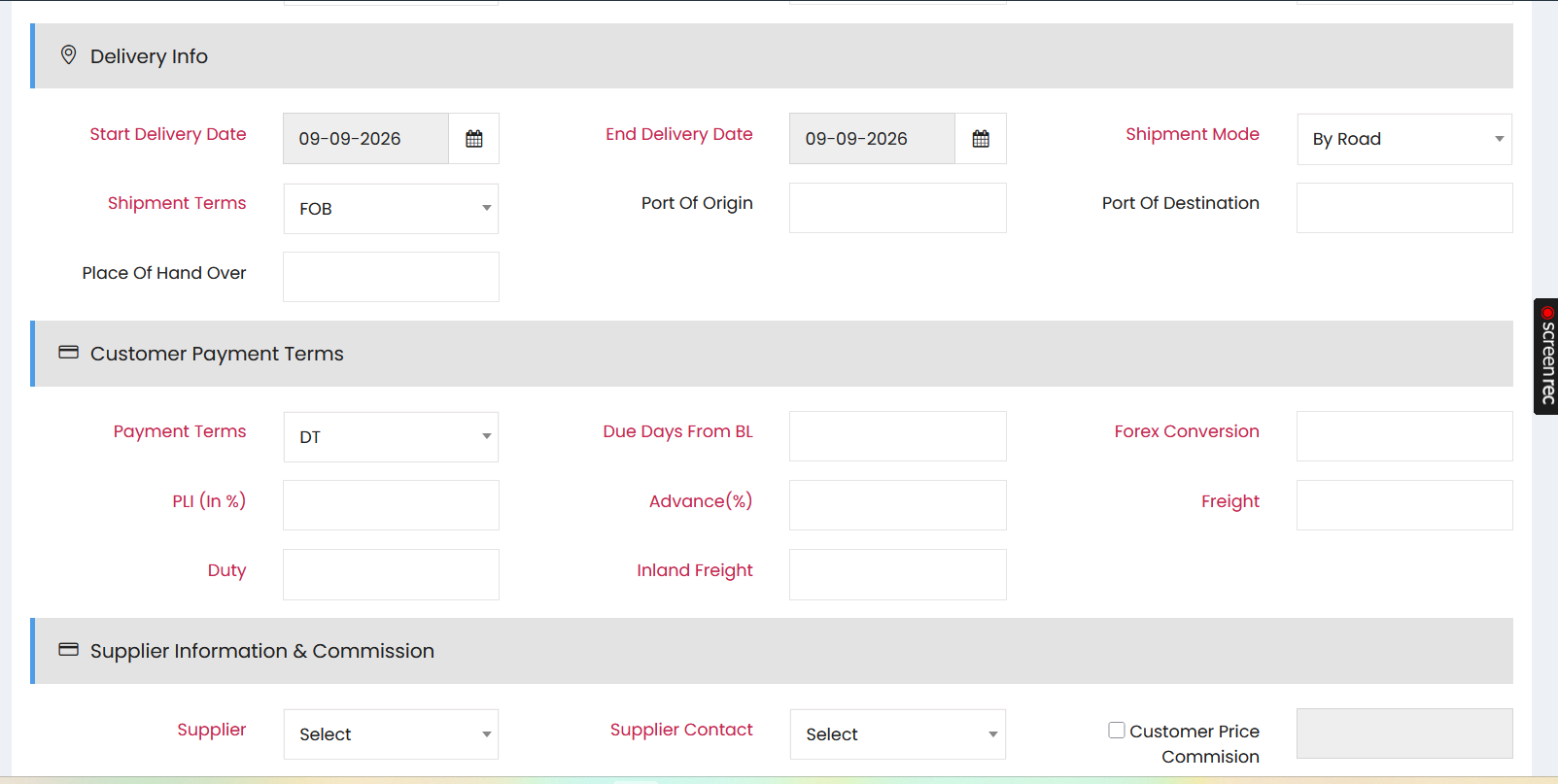
Enter the shipment and delivery details in the Delivery Info section:
- Start Delivery Date – Select the expected start delivery date.
- End Delivery Date – Select the expected end delivery date.
- Shipment Mode – Select the shipment mode, such as By Road.
- Shipment Terms – Select the applicable shipment terms, such as FOB.
- Port Of Origin – Enter the origin port.
- Port Of Destination – Enter the destination port.
- Place Of Hand Over – Enter the location where the goods will be handed over.
Customer Payment Terms
Enter the payment-related information in the Customer Payment Terms section:
- Payment Terms – Select the applicable payment terms.
- Due Days From BL – Enter the number of days from the Bill of Lading (BL) date.
- Forex Conversion – Enter the applicable foreign exchange conversion value.
- PLI (In %) – Enter the PLI percentage.
- Advance (%) – Enter the advance payment percentage.
- Freight – Enter the applicable freight amount.
- Duty – Enter the applicable duty amount.
- Inland Freight – Enter the applicable inland freight amount.
Supplier Information & Commission
Enter the supplier and commission details in the Supplier Information & Commission section:
- Supplier – Select the supplier associated with the purchase order.
- Supplier Contact – Select the supplier contact.
- Customer Price Commission – Select the checkbox and enter the applicable customer price commission when required.