


Overview
The Customers & Suppliers section in Skynyx BMS is used to maintain customer and supplier information in a centralized location. Users can create, view, search, filter, and manage contact records for both customers and vendors.
Contacts List
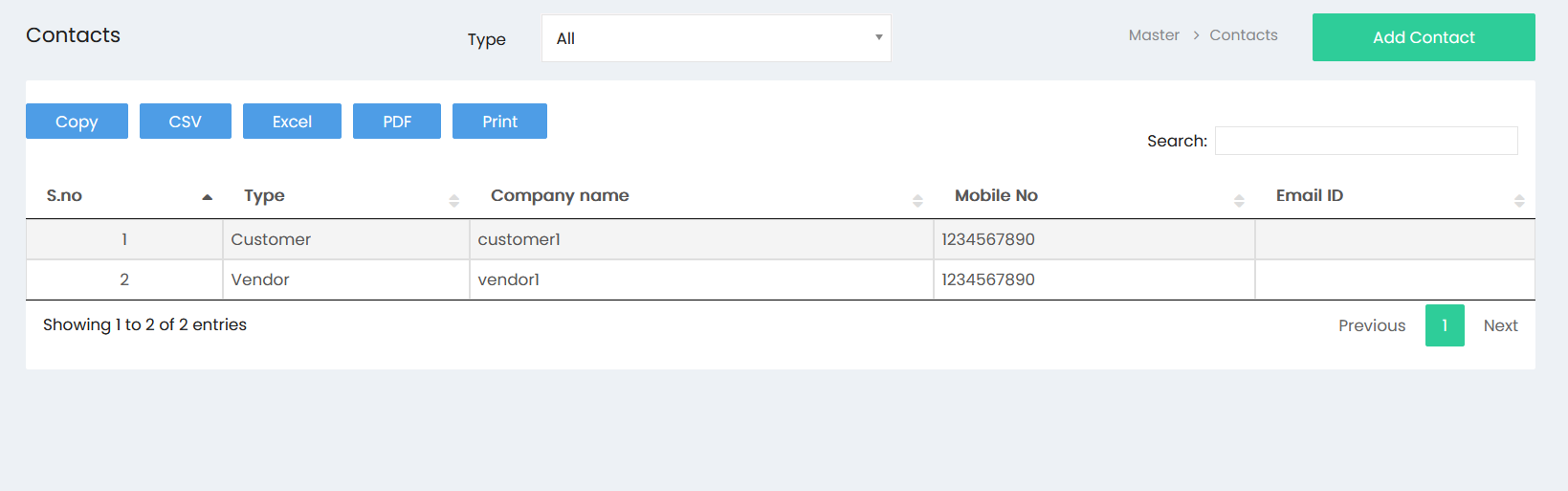
The Contacts page displays all available customer and supplier records.
Contact Type
The Type filter allows users to filter contacts based on their category. The available option includes:
- All – Displays all customer and supplier records.
- Customer – Displays customer records.
- Vendor – Displays supplier/vendor records.
Contact List Information
The contact list displays the following information:
- S.No – Serial number of the contact.
- Type – Indicates whether the contact is a Customer or Vendor.
- Company Name – Displays the company name.
- Mobile No – Displays the registered mobile number.
- Email ID – Displays the contact email address.
Search
The Search field allows users to quickly find a contact by entering relevant information available in the contact list.
Export & Print
The contact list provides the following options:
- Copy – Copies the displayed contact information.
- CSV – Exports the contact information in CSV format.
- Excel – Exports the contact information in Excel format.
- PDF – Exports the contact information in PDF format.
- Print – Prints the contact list.
Pagination
The pagination controls allow users to navigate between multiple pages of contact records using Previous, page numbers, and Next.
Add Contact
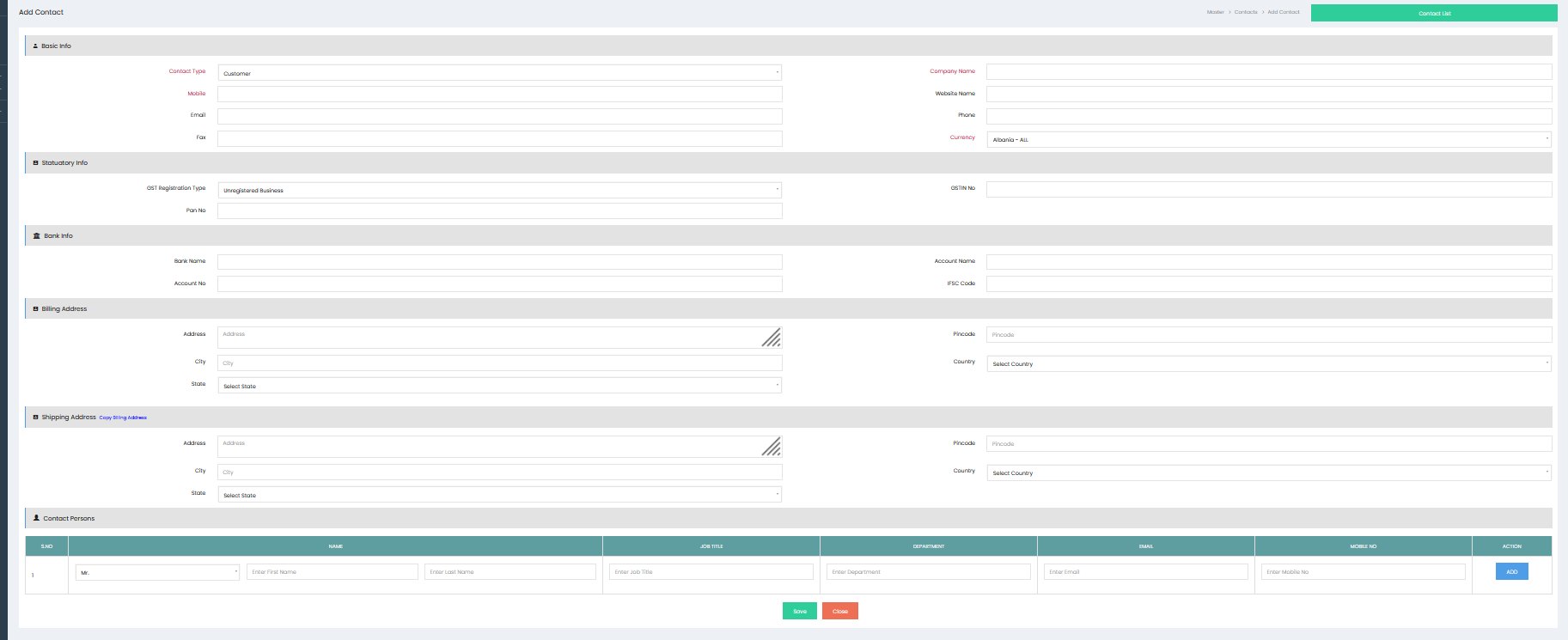
The Add Contact function is used to create a new customer or supplier record.
Basic Info
The Basic Info section captures the primary contact and company details.
Contact Type
Select the appropriate contact type, such as Customer or Vendor.
Company Name
Enter the registered or business name of the customer or supplier.
Mobile
Enter the mobile number associated with the contact.
Website Name
Enter the company's website information, if applicable.
Enter the primary email address of the contact.
Phone
Enter the contact's phone number.
Fax
Enter the fax number, if applicable.
Currency
Select the applicable currency for transactions with the customer or supplier.
Statutory Info
The Statutory Info section is used to record statutory and tax-related information.
GST Registration Type
Select the applicable GST registration type for the contact.
GSTIN No
Enter the GST identification number, where applicable.
PAN No
Enter the Permanent Account Number associated with the customer or supplier.
Bank Info
The Bank Info section stores the banking details of the customer or supplier.
Bank Name
Enter the name of the bank.
Account Name
Enter the name associated with the bank account.
Account No
Enter the bank account number.
IFSC Code
Enter the applicable IFSC code.
Billing Address
The Billing Address section is used to record the billing address of the customer or supplier.
The section includes:
- Address – Enter the complete billing address.
- City – Enter the city.
- State – Select the applicable state.
- Pincode – Enter the postal code.
- Country – Select the applicable country.
Shipping Address
The Shipping Address section is used to record the delivery or shipping address.
The section includes:
- Address – Enter the shipping address.
- City – Enter the city.
- State – Select the applicable state.
- Pincode – Enter the postal code.
- Country – Select the applicable country.
The Copy Billing Address option can be used to use the billing address as the shipping address.
Contact Persons
The Contact Persons section allows users to maintain individual contact details associated with the customer or supplier company.
The contact person information includes:
- S.No – Serial number.
- Name – Includes title, first name, and last name.
- Job Title – Enter the designation of the contact person.
- Department – Enter the department of the contact person.
- Email – Enter the contact person's email address.
- Mobile No – Enter the contact person's mobile number.
- Action – Provides the option to add the contact person.
Multiple contact persons can be maintained for a single customer or supplier.
Save
Click Save to create and store the customer or supplier record along with the entered contact, statutory, banking, address, and contact person information.
Close
Click Close to exit the Add Contact page without saving the record.
Customer & Supplier Management
The Customers & Suppliers section enables users to:
- Maintain customer and supplier records.
- Classify contacts as customers or vendors.
- Store company and communication details.
- Maintain statutory and tax information.
- Record banking details.
- Maintain billing and shipping addresses.
- Manage multiple contact persons.
- Search and filter contact records.
- Export contact information in different formats.
- Print contact information.