


Purpose
The Purchase Orders module is used to create purchase orders for vendors. It allows users to enter vendor information, delivery details, shipment information, payment details, item details, attachments, and order totals.
Navigation
Inventory → Purchase Orders → Add Purchase Order
Purchase Orders List
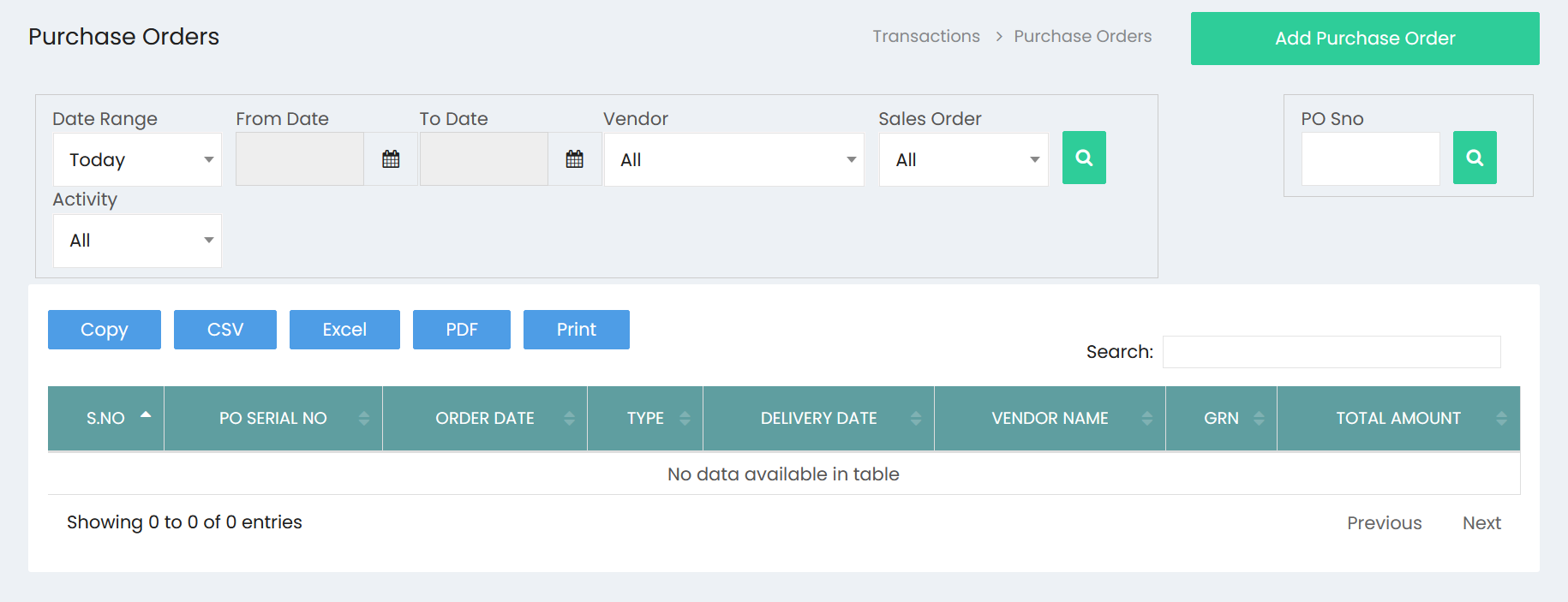
The Purchase Orders page displays all purchase orders and provides filtering, search, and export options.
Available Actions
- Add Purchase Order
- Search
- Copy
- CSV
- Excel
Filter Options
The following filters are available.
| Filter | Description |
|---|---|
| Date Range | Dropdown. The visible default value is Today. |
| From Date | Date selection field. |
| To Date | Date selection field. |
| Vendor | Dropdown. The visible default value is All. |
| Sales Order | Dropdown. The visible default value is All. |
| Activity | Dropdown. The visible default value is All. |
| Search | Searches using the selected filters. |
| PO Sno | Search field with a Search (????) button. |
Purchase Order List
The list displays the following columns.
| Column | Description |
|---|---|
| S.No | Serial number. |
| PO Serial No | Purchase Order serial number. |
| Order Date | Purchase order date. |
| Type | Purchase order type. |
| Delivery Date | Expected delivery date. |
| Vendor Name | Vendor name. |
| GRN | GRN reference column. |
| Total Amount | Total purchase order amount. |
Export Options
The following export options are available.
- Copy
- CSV
- Excel
Add Purchase Order
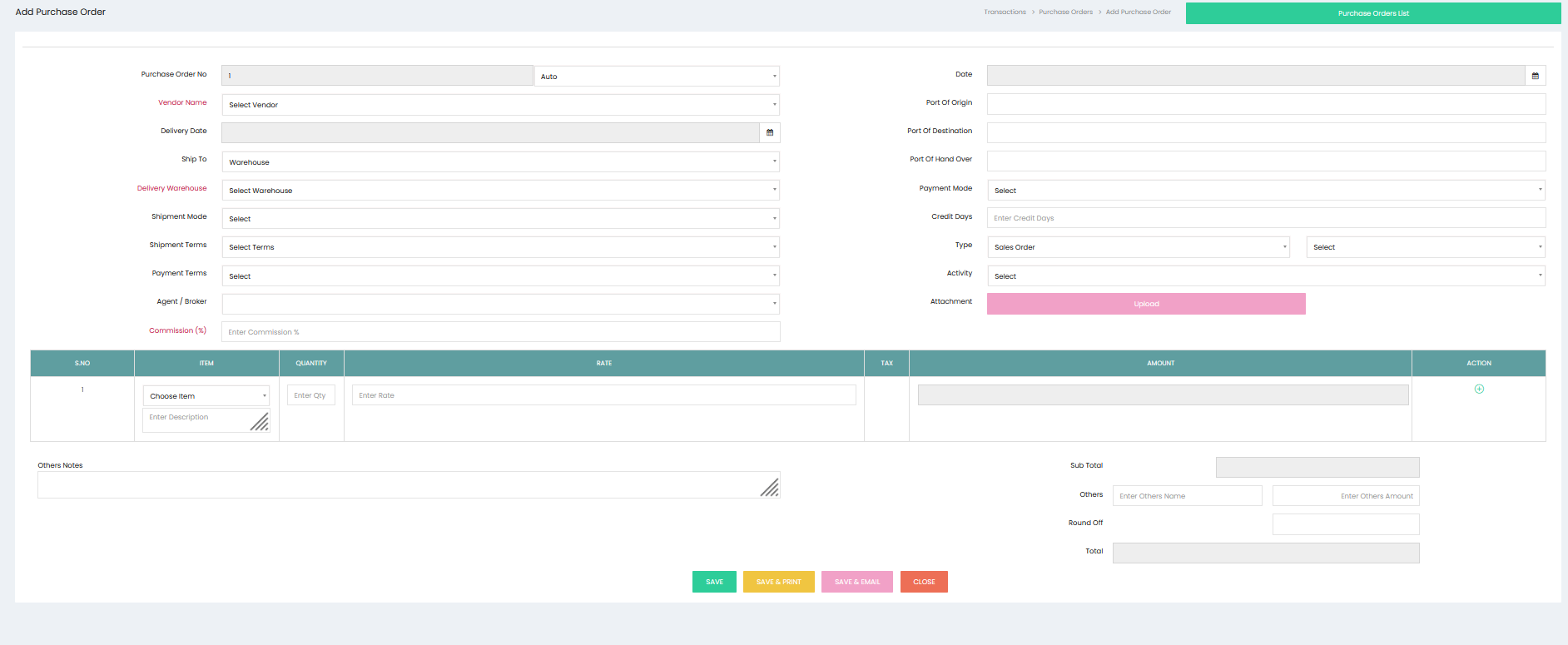
Click Add Purchase Order to open the purchase order creation page.
Purchase Order Information
The purchase order page contains the following fields.
| Field | Description |
|---|---|
| Purchase Order No | Purchase order number. |
| Numbering Type | Dropdown displayed beside the Purchase Order No. The visible value is Auto. |
| Vendor Name | Select the vendor. |
| Date | Purchase order date. |
| Delivery Date | Select the delivery date. |
| Ship To | Select the shipping location. |
| Delivery Warehouse | Select the warehouse. |
| Shipment Mode | Select the shipment mode. |
| Shipment Terms | Select the shipment terms. |
| Payment Terms | Select the payment terms. |
| Payment Mode | Select the payment mode. |
| Credit Days | Enter the credit days. |
| Agent / Broker | Select an agent or broker. |
| Commission (%) | Enter the commission percentage. |
| Port Of Origin | Enter the port of origin. |
| Port Of Destination | Enter the port of destination. |
| Port Of Hand Over | Enter the port of hand over. |
| Type | Dropdown. The visible value is Sales Order. |
| Additional Type Selection | Dropdown displayed beside the Type field. |
| Activity | Select the activity. |
| Attachment | Upload an attachment using the Upload button. |
Item Details
The item section contains the following columns.
| Column | Description |
|---|---|
| S.No | Serial number. |
| Item | Select the item. |
| Quantity | Enter the quantity. |
| Rate | Enter the item rate. |
| Tax | Tax column. |
| Amount | Displays the item amount. |
| Action | Action column. |
The Item section also includes a Description field beneath the item selection.
Other Notes
An Others Notes text area is available for entering additional notes.
Order Totals
The following summary fields are displayed.
| Field |
|---|
| Sub Total |
| Others Name |
| Others Amount |
| Round Off |
| Total |
Available Buttons
| Button | Description |
|---|---|
| SAVE | Saves the purchase order. |
| SAVE & PRINT | Saves and prints the purchase order. |
| SAVE & EMAIL | Saves and emails the purchase order. |
| CLOSE | Closes the page without saving. |
| Purchase Orders List | Returns to the Purchase Orders list page. |
Workflow – Create a Purchase Order
Step 1
Navigate to:
Inventory → Purchase Orders
Step 2
Click Add Purchase Order.
Step 3
Enter or review the Purchase Order No.
Step 4
Select the Vendor Name.
Step 5
Enter the order details:
- Date
- Delivery Date
- Ship To
- Delivery Warehouse
Step 6
Enter shipment information:
- Shipment Mode
- Shipment Terms
- Port Of Origin
- Port Of Destination
- Port Of Hand Over
Step 7
Enter payment information:
- Payment Terms
- Payment Mode
- Credit Days
Step 8
Enter additional information:
- Agent / Broker
- Commission (%)
- Type
- Activity
Step 9 (Optional)
Upload a file using the Upload button.
Step 10
Add the item details:
- Select Item
- Enter Description
- Enter Quantity
- Enter Rate
- Review Tax
- Review Amount
Step 11 (Optional)
Enter information in the Others Notes section.
Step 12
Review the order totals:
- Sub Total
- Others
- Round Off
- Total
Step 13
Click one of the following:
- SAVE
- SAVE & PRINT
- SAVE & EMAIL
or click CLOSE to exit without saving.
Workflow – View Purchase Orders
Step 1
Open Inventory → Purchase Orders.
Step 2
Filter the records using any of the following:
- Date Range
- From Date
- To Date
- Vendor
- Sales Order
- Activity
Step 3
Click the Search button.
Step 4
Alternatively, search using the PO Sno field.
Step 5
Review the purchase order list.
Step 6
Use the Search box to locate a specific purchase order.
Step 7
Use the available export options if required:
- Copy
- CSV
- Excel