


Purpose
The Bill of Materials (BOM) module is used to define the components required to produce a finished product. A BOM consists of a finished product, BOM information, component items, and the total BOM cost.
Navigation
Master → Bill Of Materials
Bill of Materials List
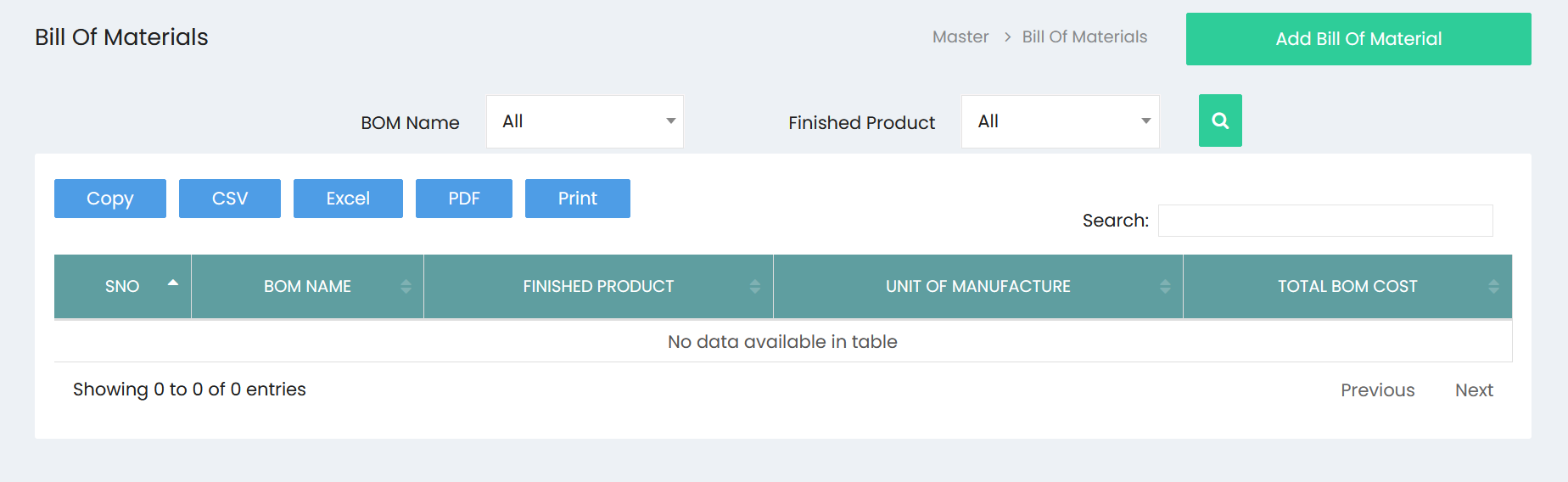
The Bill Of Materials page displays the list of available BOM records.
Available Actions
- Add Bill Of Material
- Search
- Copy
- CSV
- Excel
Filter Options
The page provides the following filters.
| Filter | Description |
|---|---|
| BOM Name | Dropdown filter. The visible default value is All. |
| Finished Product | Dropdown filter. The visible default value is All. |
| Search | Searches using the selected filter values. |
Search
A Search box is available above the BOM list.
Use the search field to locate an existing BOM.
BOM List
The list displays the following columns.
| Column | Description |
|---|---|
| S.No | Serial number. |
| BOM Name | Name of the Bill of Materials. |
| Finished Product | Finished product associated with the BOM. |
| Unit Of Manufacture | Unit of manufacture. |
| Total BOM Cost | Total cost of the BOM. |
Export Options
The following export options are available.
- Copy
- CSV
- Excel
Add Bill of Materials
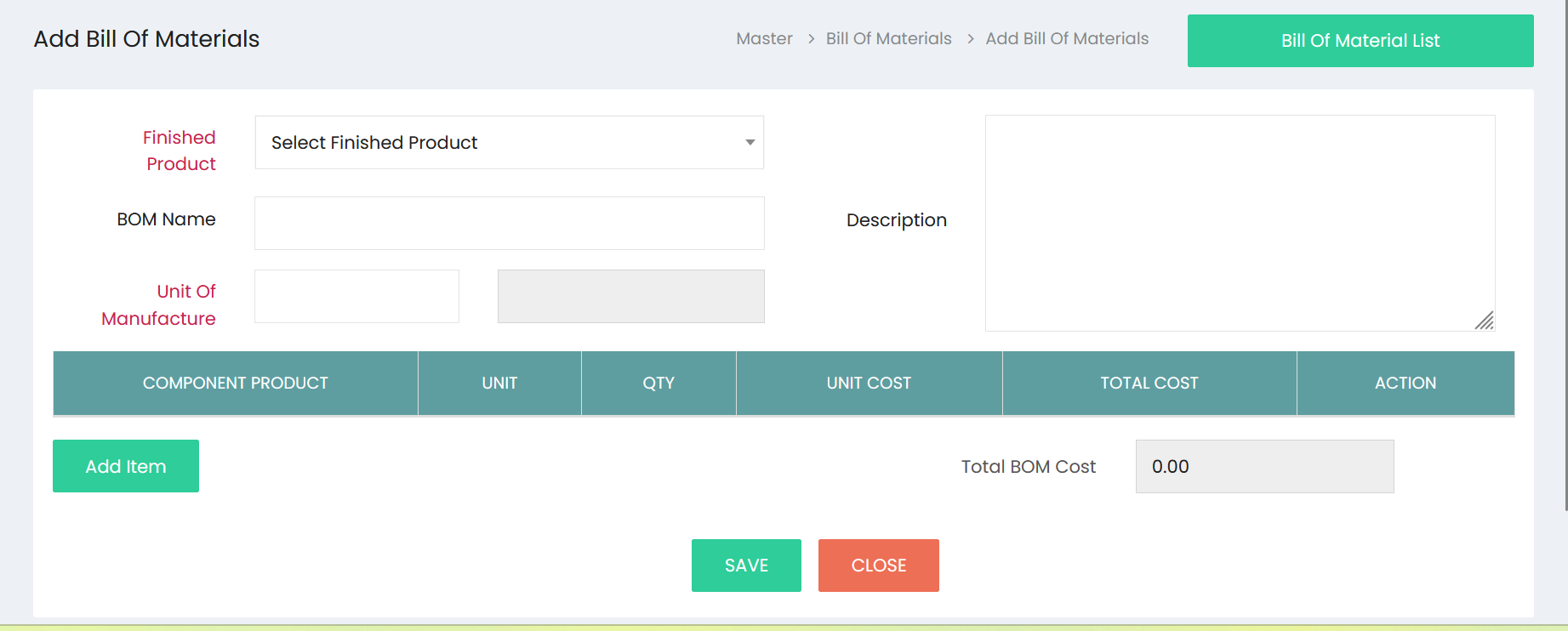
Click Add Bill Of Material to open the BOM creation page.
BOM Information
The following fields are available.
| Field | Description |
|---|---|
| Finished Product | Select the finished product. |
| BOM Name | Enter the BOM name. |
| Unit Of Manufacture | Displays two fields for unit of manufacture. |
| Description | Enter a description for the BOM. |
Component Items
The component section contains the following columns.
| Column | Description |
|---|---|
| Component Product | Product used as a component. |
| Unit | Unit of the component. |
| Qty | Quantity required. |
| Unit Cost | Cost per unit. |
| Total Cost | Total component cost. |
| Action | Action column for component entries. |
Available Actions
| Action | Description |
|---|---|
| Add Item | Adds a component item to the BOM. |
Total BOM Cost
A Total BOM Cost field is displayed at the bottom of the page.
The visible default value is:
0.00
Available Buttons
| Button | Description |
|---|---|
| SAVE | Saves the BOM. |
| CLOSE | Closes the page without saving. |
| Bill Of Material List | Returns to the BOM list page. |
Workflow – Create a Bill of Materials
Step 1
Navigate to:
Master → Bill Of Materials
Step 2
Click Add Bill Of Material.
Step 3
Select the Finished Product.
Step 4
Enter the BOM Name.
Step 5
Enter or review the Unit Of Manufacture information.
Step 6
Enter the Description.
Step 7
Click Add Item.
Step 8
Add component information using the available columns:
- Component Product
- Unit
- Qty
- Unit Cost
- Total Cost
Step 9
Review the Total BOM Cost.
Step 10
Click SAVE.
Step 11
Click Bill Of Material List to return to the list page.
Workflow – View Bill of Materials
Step 1
Open Master → Bill Of Materials.
Step 2
Use the available filters:
- BOM Name
- Finished Product
Step 3
Click the Search button.
Step 4
Review the available BOM records.
Step 5
Use the Search box to locate a specific BOM.
Step 6
Use any of the available export options if required:
- Copy
- CSV
- Excel