


Purpose
The Warehouses module is used to create and maintain warehouse information. Each warehouse record stores location and contact details, and a warehouse can be designated as the Default Warehouse.
Navigation
Master → Warehouses
Warehouse List
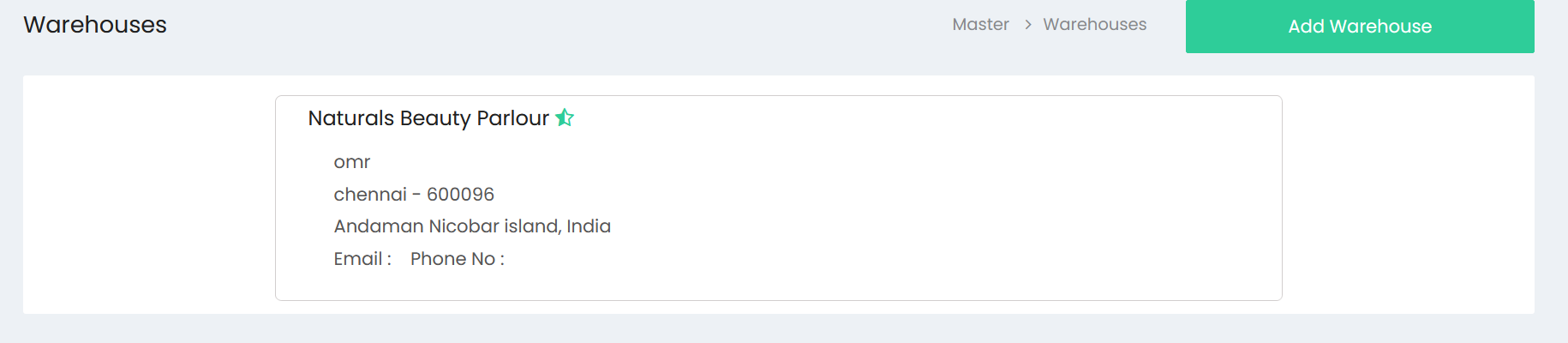
The Warehouses page displays the list of available warehouses.
Available Actions
- Add Warehouse
Warehouse Information
Each warehouse card displays the following information:
| Information | Description |
|---|---|
| Warehouse Name | Name of the warehouse. |
| Address | Warehouse address. |
| City & Pincode | City and postal code. |
| State & Country | State and country. |
| Warehouse email address. | |
| Phone No | Warehouse contact number. |
| Default Warehouse Indicator | A star (?) displayed next to the warehouse name identifies the default warehouse. |
Add Warehouse
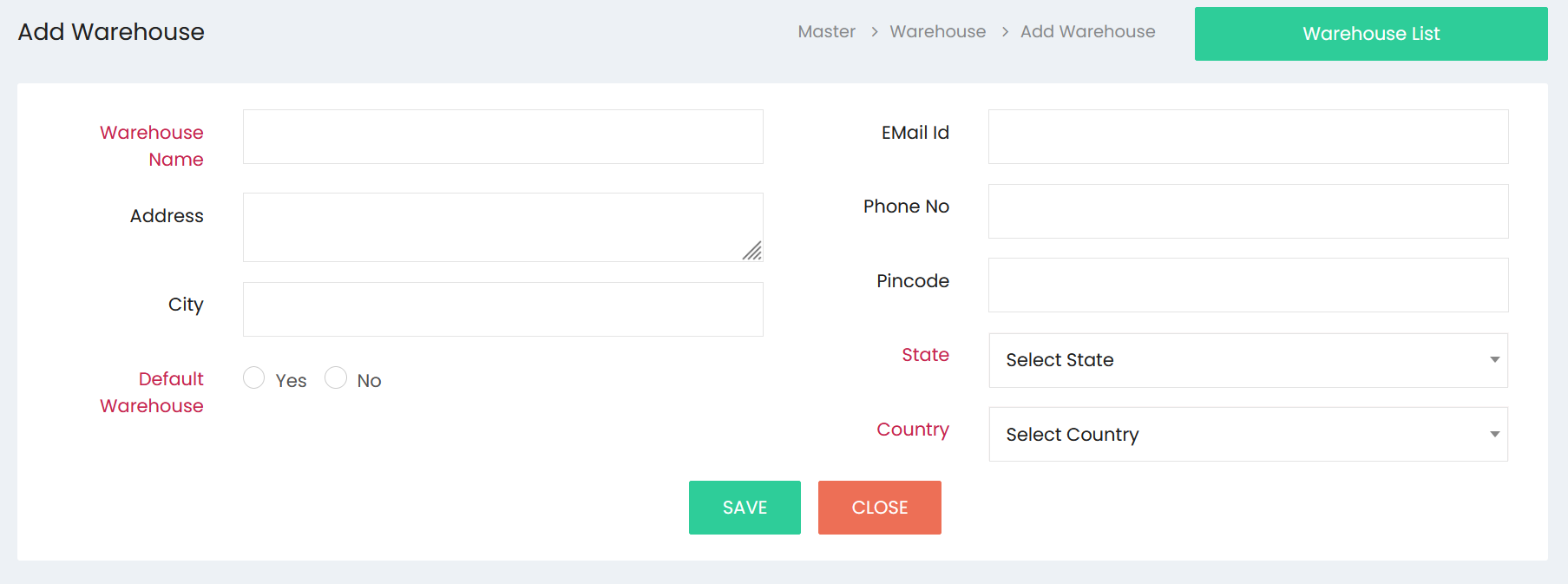
Click Add Warehouse to open the warehouse creation page.
Available Fields
| Field | Description |
|---|---|
| Warehouse Name | Enter the warehouse name. |
| Address | Enter the warehouse address. |
| City | Enter the city. |
| Email Id | Enter the email address. |
| Phone No | Enter the phone number. |
| Pincode | Enter the postal code. |
| State | Select a state. |
| Country | Select a country. |
| Default Warehouse | Select Yes or No. |
Default Warehouse
The Default Warehouse field provides the following options:
- Yes
- No
Available Buttons
| Button | Description |
|---|---|
| SAVE | Saves the warehouse details. |
| CLOSE | Closes the page without saving. |
| Warehouse List | Returns to the Warehouse List page. |
Workflow – Add a Warehouse
Step 1
Navigate to:
Master → Warehouses
Step 2
Click Add Warehouse.
Step 3
Enter the Warehouse Name.
Step 4
Enter the Address.
Step 5
Enter the City.
Step 6
Enter the following contact details:
- Email Id
- Phone No
- Pincode
Step 7
Select the State.
Step 8
Select the Country.
Step 9
Choose whether the warehouse should be the Default Warehouse by selecting:
- Yes
- No
Step 10
Click SAVE.
Step 11
Click Warehouse List to return to the warehouse list.
Workflow – View Warehouses
Step 1
Open Master → Warehouses.
Step 2
Review the available warehouse cards.
Step 3
Identify the default warehouse by the star (?) displayed beside the warehouse name.