


Purpose
The Navigation Menu provides access to the primary modules of the Skynyx Inventory application. It is located on the left side of the application and organizes the available features into expandable sections.
Navigation Structure
The left navigation panel contains the following main menu items:
- Dashboard
- Master
- Inventory
- Production
- All Reports
Dashboard
The Dashboard menu opens the applications dashboard page.
Master
The Master menu is expandable and contains the following modules.
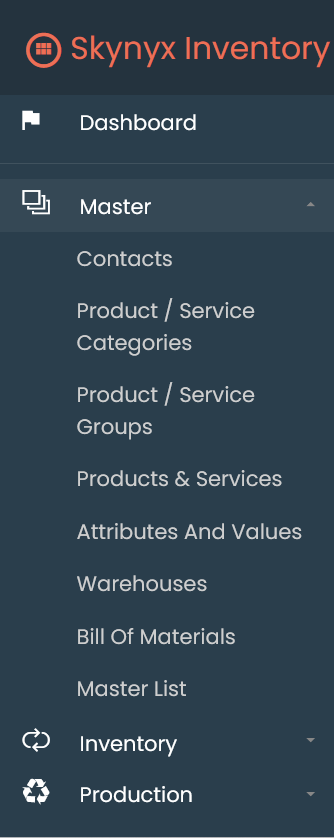
| Menu | Description |
|---|---|
| Contacts | Opens the Contacts module. |
| Product / Service Categories | Opens the Product / Service Categories module. |
| Product / Service Groups | Opens the Product / Service Groups module. |
| Products & Services | Opens the Products & Services module. |
| Attributes And Values | Opens the Attributes And Values module. |
| Warehouses | Opens the Warehouses module. |
| Bill Of Materials | Opens the Bill Of Materials module. |
| Master List | Opens the Master List module. |
Inventory
The Inventory menu is expandable and contains the following modules.
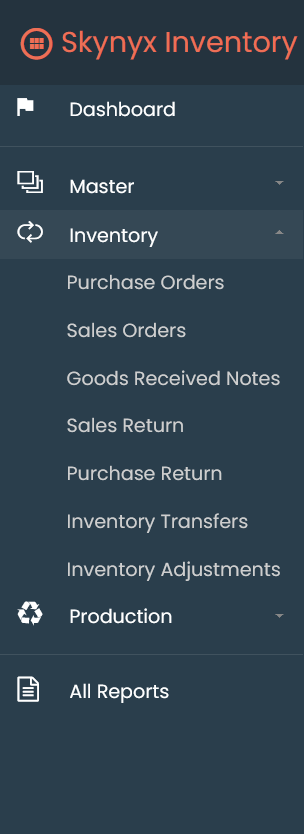
| Menu | Description |
|---|---|
| Purchase Orders | Opens the Purchase Orders module. |
| Sales Orders | Opens the Sales Orders module. |
| Goods Received Notes | Opens the Goods Received Notes module. |
| Sales Return | Opens the Sales Return module. |
| Purchase Return | Opens the Purchase Return module. |
| Inventory Transfers | Opens the Inventory Transfers module. |
| Inventory Adjustments | Opens the Inventory Adjustments module. |
Production
The Production menu is expandable and contains the following modules.
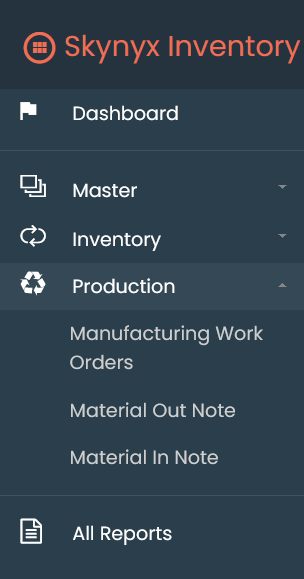
| Menu | Description |
|---|---|
| Manufacturing Work Orders | Opens the Manufacturing Work Orders module. |
| Material Out Note | Opens the Material Out Note module. |
| Material In Note | Opens the Material In Note module. |
All Reports
The All Reports menu opens the Reports section of the application.
Navigation Workflow
Step 1
Log in to the Skynyx Inventory application.
Step 2
Use the navigation panel located on the left side of the screen.
Step 3
Click Dashboard to access the dashboard.
Step 4
Click Master to expand or collapse the Master menu and access:
- Contacts
- Product / Service Categories
- Product / Service Groups
- Products & Services
- Attributes And Values
- Warehouses
- Bill Of Materials
- Master List
Step 5
Click Inventory to expand or collapse the Inventory menu and access:
- Purchase Orders
- Sales Orders
- Goods Received Notes
- Sales Return
- Purchase Return
- Inventory Transfers
- Inventory Adjustments
Step 6
Click Production to expand or collapse the Production menu and access:
- Manufacturing Work Orders
- Material Out Note
- Material In Note
Step 7
Click All Reports to open the Reports page.
Available Navigation Options
| Main Menu | Available Modules |
|---|---|
| Dashboard | Dashboard |
| Master | Contacts, Product / Service Categories, Product / Service Groups, Products & Services, Attributes And Values, Warehouses, Bill Of Materials, Master List |
| Inventory | Purchase Orders, Sales Orders, Goods Received Notes, Sales Return, Purchase Return, Inventory Transfers, Inventory Adjustments |
| Production | Manufacturing Work Orders, Material Out Note, Material In Note |
| All Reports | Reports |