


Purpose
The Attributes & Values module is used to maintain product attributes that can be associated with products and services. The page displays the list of available attributes and provides options to add, edit, and delete attributes.
Navigation
Master → Attributes & Values
Attributes & Values Page
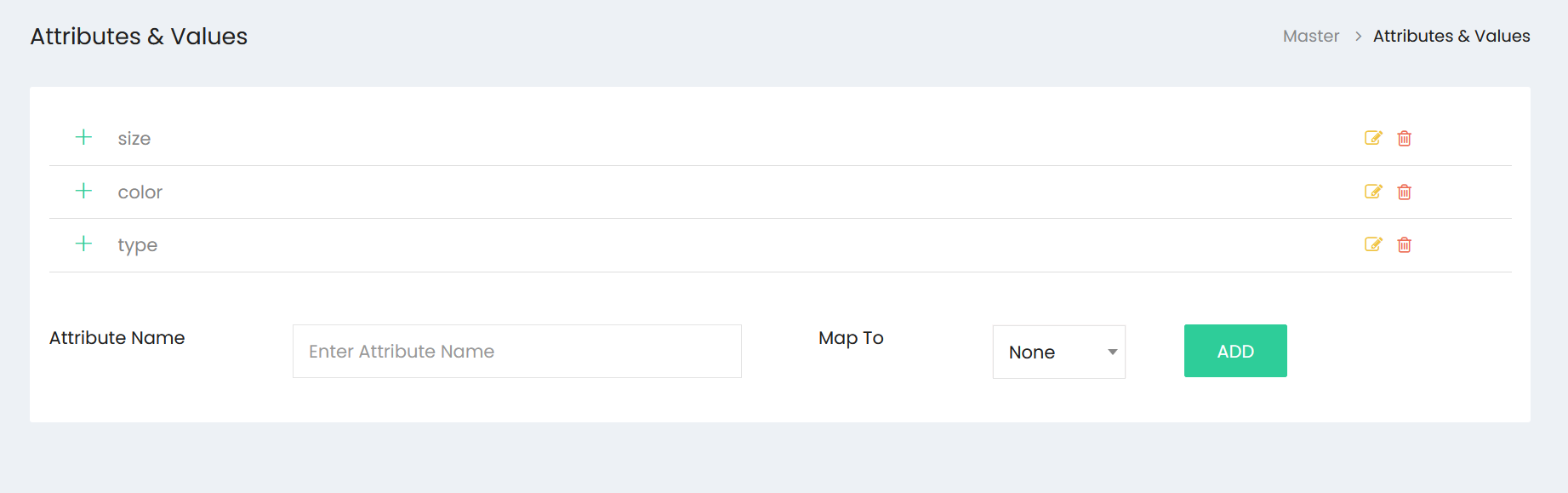
The page displays the list of available attributes.
In the provided screenshot, the following attributes are available:
- size
- color
- type
Each attribute is displayed with action icons.
Available Actions
| Action | Description |
|---|---|
| Expand (+) | Expands the attribute to view its values. |
| Edit | Opens the selected attribute for editing. |
| Delete | Deletes the selected attribute. |
The expanded values are not visible in the provided screenshots and are therefore not documented.
Add Attribute

The lower section of the page is used to create a new attribute.
Available Fields
| Field | Description |
|---|---|
| Attribute Name | Enter the attribute name. |
| Map To | Dropdown field. The visible default value is None. |
Available Button
| Button | Description |
|---|---|
| ADD | Adds the new attribute. |
Workflow – Add an Attribute
Step 1
Navigate to:
Master → Attributes & Values
Step 2
In the Attribute Name field, enter the attribute name.
Step 3
Select a value from the Map To dropdown if required.
The visible default value is None.
Step 4
Click ADD.
Workflow – View Attributes
Step 1
Open Master → Attributes & Values.
Step 2
Review the list of available attributes.
Step 3
Click the Expand (+) icon beside an attribute to expand it.
The expanded content is not visible in the provided screenshots.
Workflow – Edit an Attribute
Step 1
Locate the required attribute.
Step 2
Click the Edit icon displayed beside the attribute.
Workflow – Delete an Attribute
Step 1
Locate the required attribute.
Step 2
Click the Delete icon displayed beside the attribute.