


Tasks
The Tasks section is used to create and manage tasks.
Create Task
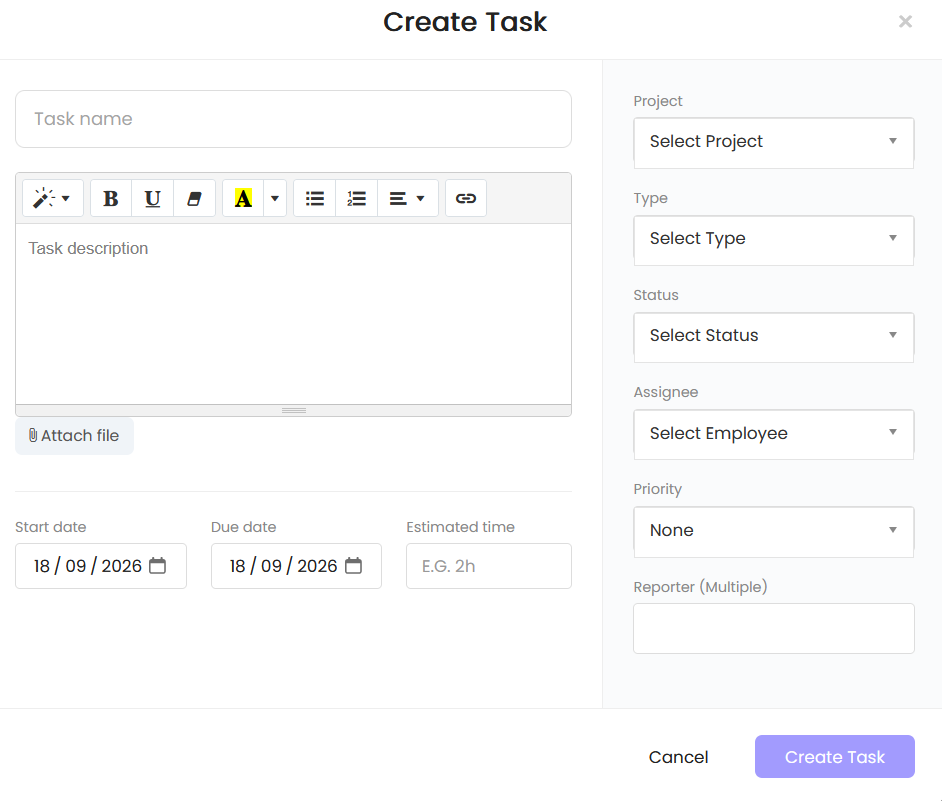
The Create Task window includes the following fields and options:
- Task Name – Enter the name of the task.
- Task Description – Enter the task description using the available formatting options.
- Attach file – Attach a file to the task.
- Start Date – Select the task start date.
- Due Date – Select the task due date.
- Estimated Time – Enter the estimated time for completing the task.
- Project – Select the project associated with the task.
- Type – Select the task type.
- Status – Select the task status.
- Assignee – Select the employee assigned to the task.
- Priority – Select the task priority.
- Reporter (Multiple) – Select the reporter or reporters for the task.
- Create Task – Create the task.
- Cancel – Cancel task creation.
Teams
The Teams section is used to create teams and define their basic details.
Create Team
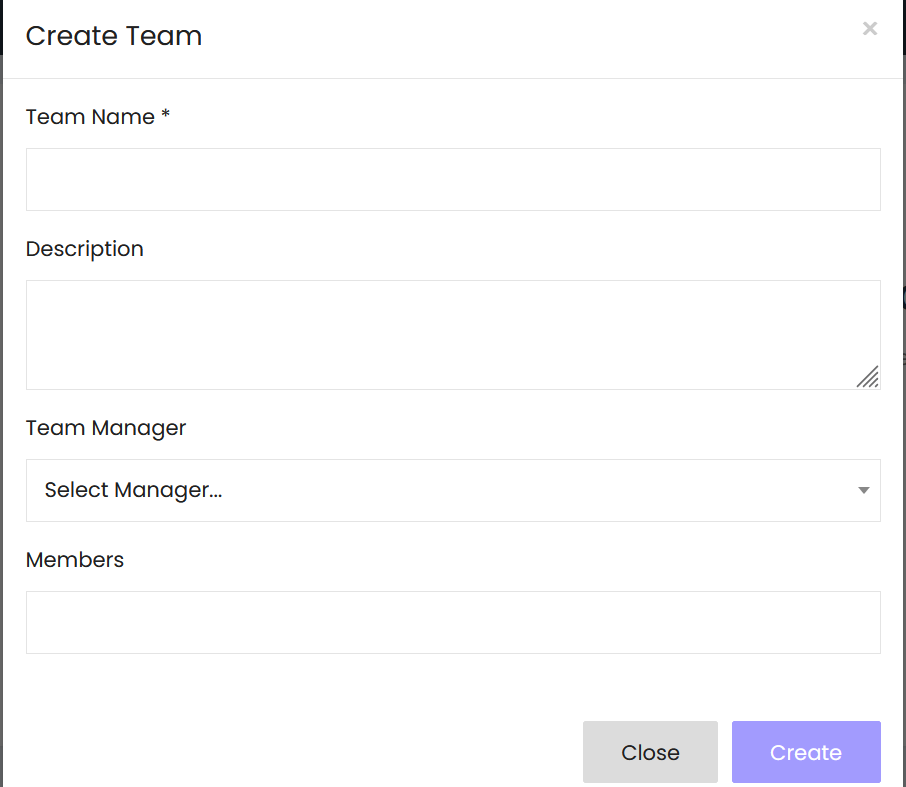
The Create Team window includes:
- Team Name* – Enter the team name.
- Description – Enter a description for the team.
- Team Manager – Select a team manager.
- Members – Specify the team members.
- Close – Close the Create Team window.
- Create – Create the team.
Projects
The Projects section is used to create and manage projects.
Create Project
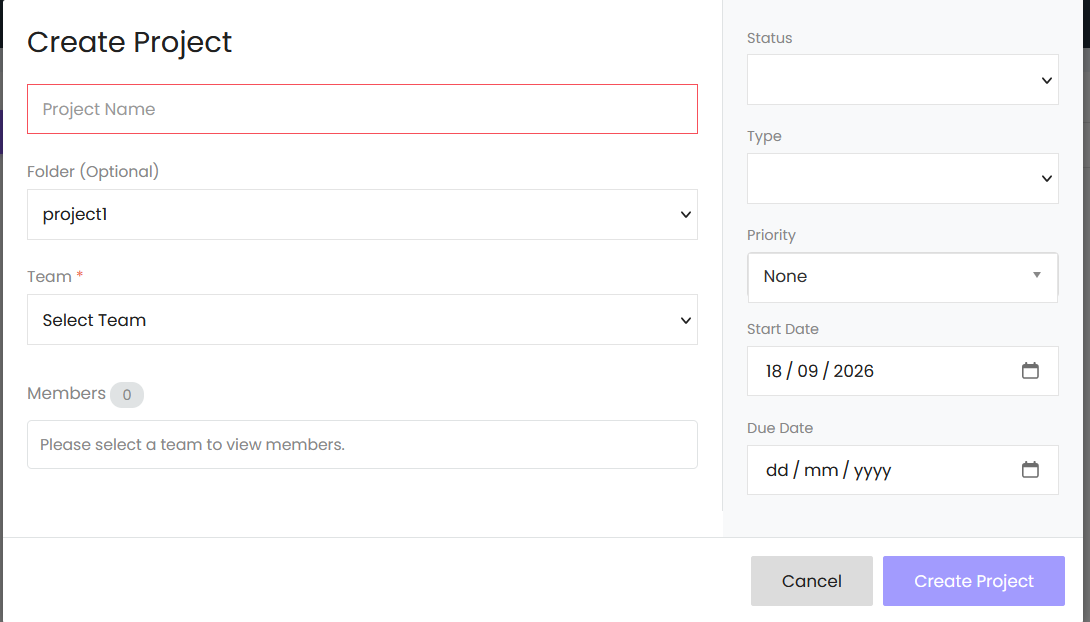
The Create Project window includes:
- Project Name – Enter the project name.
- Folder (Optional) – Select a folder for the project.
- Team* – Select the team associated with the project.
- Members – Displays the members associated with the selected team.
- Status – Select the project status.
- Type – Select the project type.
- Priority – Select the project priority.
- Start Date – Select the project start date.
- Due Date – Select the project due date.
- Cancel – Cancel project creation.
- Create Project – Create the project.
Folders
Folders can be created for organizing projects.
Create Folder
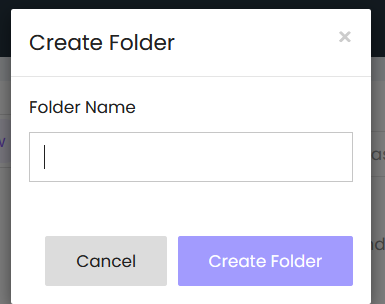
The Create Folder window includes:
- Folder Name – Enter the folder name.
- Cancel – Cancel folder creation.
- Create Folder – Create the folder.